Review of Ugee’s Best Computer Drawing Tablet
If you’re looking for a reliable computer drawing tablet, the UGEE S640 is a top choice. You can easily take notes, sketch ideas, or start learning digital art right away. The pen and the tables will make it a lot smoother than you can imagine.
By Admin
·March 26 14
If you want to take notes by drawing on your phone, make diagrams, or just learn digital art, then moving your finger across the screen won’t help because you’ve been taught to function with a pencil since childhood. And you can clearly take notes better with them, but who wants to carry those huge notebooks to class? At the same time, taking notes on a keyboard won’t allow you to doodle in between, which can help you understand things better later, right?
So now the question is, why are you still typing everything out on a keyboard and carrying those huge notebooks to class?
We are evolving, and so is the world, along with the technology around us. Now you can easily take notes without carrying anything bulky. With just one computer drawing tablet from UGEE, you’re good to go. All of your work will be much easier than you think. To know this tool better, here is review of the UGEE art tablet.
Ugee 6.5″ Drawing Tablet S640
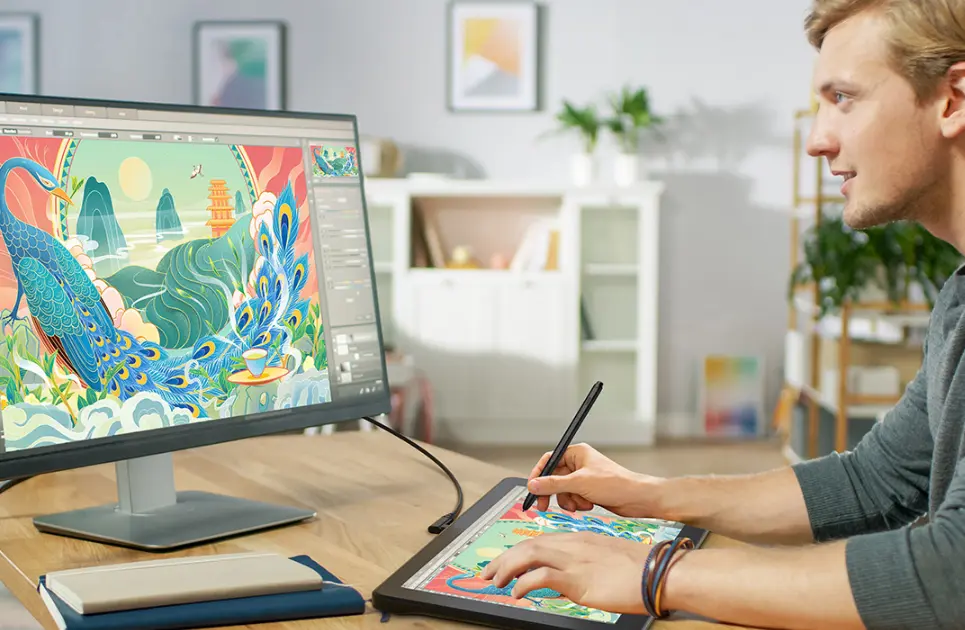
The UGEE S640 Drawing Tablet is a small device that lets you draw and write on your computer or phone using a pen instead of a mouse or your finger. You connect the tablet to your device with a cable, and when you move the stylus on the tablet, the lines appear on your screen.
The tablet is made for people who prefer writing with a pen rather than typing. Students can use it to take notes or draw diagrams during class, beginners can use it to learn digital art, and hobby artists can sketch or practice drawing.
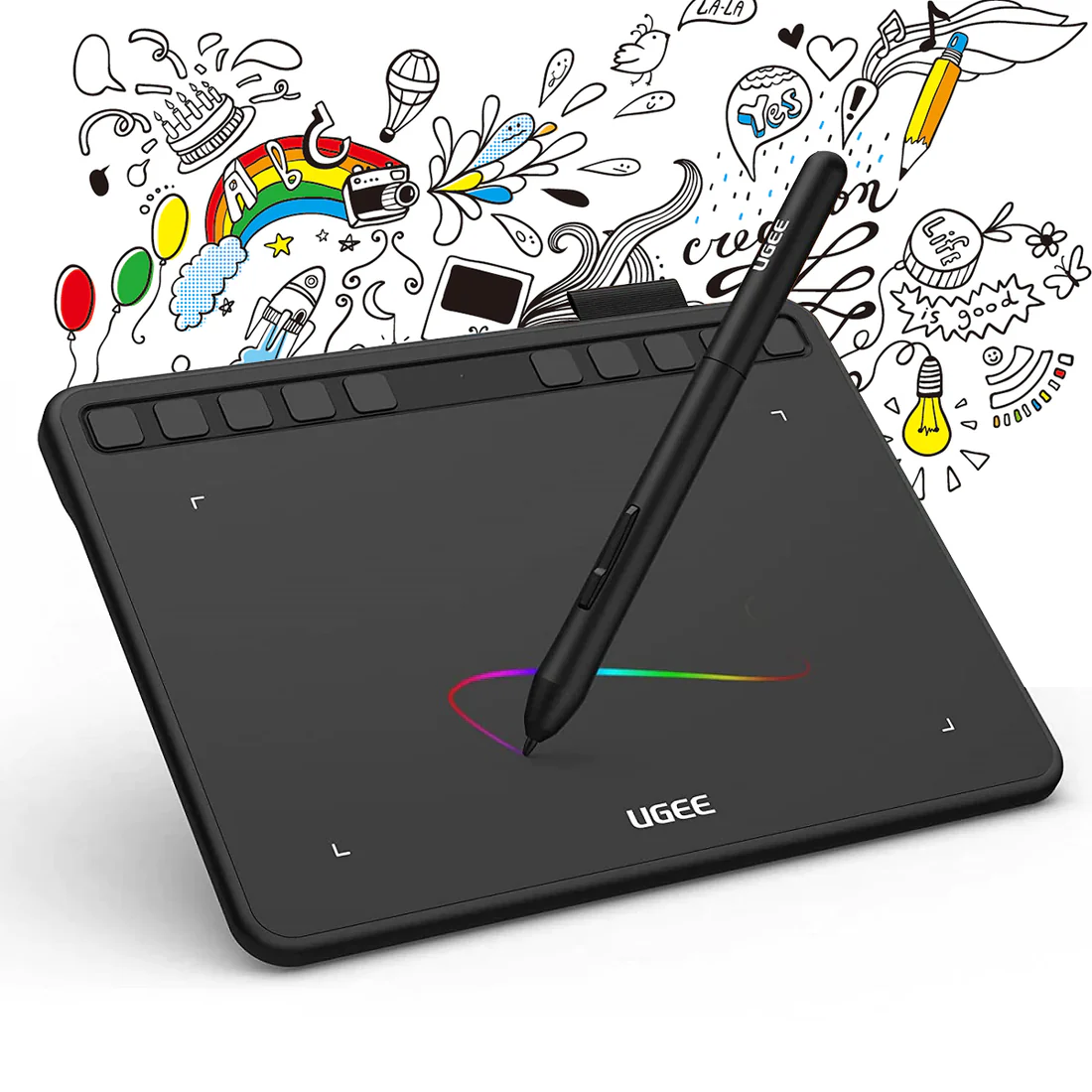
Technical Specifications of Ugee 6.5″ Drawing Tablet S640
Here are the technical specifications of this portable drawing pad:
Active Area Size: 6.3 × 4 inches: This is the part of the tablet where you actually write with the pen. It’s about the size of a small notebook page, which is enough space for taking notes. The benefit of this size is that it keeps the tablet easy to carry in a backpack.
Pressure Sensitivity Levels: 8192 levels: this portable art tablet can detect how hard or soft you press the pen. If you press lightly, the line will be thin. If you press harder, the line becomes thicker or darker.
Stylus Type (Battery-Free Pen): The stylus or Ugee tablet pen that comes with the tablet does not need batteries or charging. You can pick it up and start drawing anytime.
Shortcut / Express Keys: Has 10 shortcut buttons on the side that you can program to do different actions. For example, you can set them to undo, zoom, erase, change brush size, or switch tools.
Compatibility: Works with many types of computers and some Android phones. Like Photoshop, Krita, or Sketchbook. Because it supports many systems, you don’t need a special computer to use it.
Connection: The tablet connects to your device using a USB cable, and the box also includes adapters for USB-C and Micro-USB. Once connected, the tablet starts working almost immediately.
Weight & Dimensions:
- Weight: around 280–298 grams
- Size: about 21.5 × 16.2 cm
This means the tablet is so lightweight that you can easily carry it even in a small backpack. It’s comfortable to use on a desk or even on your lap while drawing or taking notes.
Colour Options: The drawing portable tablet comes in several colors such as black, coral, purple, and beige, depending on the model version.
How to Set Up the Ugee 6.5″ Drawing Tablet S640
Setting it up Ugee 6.5” only takes a few minutes. First, connect the tablet to your computer or supported phone using the USB cable that comes in the box. Once it is plugged in, go to the official UGEE website and download the tablet driver for your device (Windows, macOS, or others). Install the driver just like any normal software, then restart your computer.
After the restart, open the UGEE driver program to adjust the tablet settings. Here you can change things like pen pressure or set the shortcut buttons to actions. Once that’s done, open any drawing or note-taking app you like, pick up the stylus pen, and start writing or drawing on the tablet.
Benefits of Ugee 6.5″ Drawing Tablet S640
Here are some of the benefits of this graphic drawing pen tablet:
Natural Drawing and Writing
One of the biggest advantages of a drawing tablet is that it lets you use a pen instead of a mouse or your finger. Many studies and software guides point out that stylus tablets give more natural hand movement than using a mouse.
Faster Note-Taking
Typing notes on a keyboard works solely for text, but it becomes difficult when you need to draw arrows, underline ideas, write formulas, or sketch diagrams. For students, this is extremely helpful because handwritten notes often allow you to organize information visually.
Perfect for Diagrams and Visual Thinking
Many ideas are easier to explain visually rather than with long paragraphs. A drawing tablet allows you to quickly create:
- flowcharts
- mind maps
- UI designs
- concept sketches
- diagrams for study or presentations
Because the stylus is precise, you can draw small details accurately.
Better Precision
Using your finger on a phone or tablet is usually not very accurate, most of you must have noticed that. If you ever try drawing a line on any app, like Snapchat, with your finger, it usually ends up looking like random scribbles. A stylus pen is much thinner, which gives you much more precise control, especially when working on small details or writing neatly.
Reduces Paper Use and Organizes Your Work
Instead of carrying many notebooks, everything you write or draw can be saved directly on your computer as digital files. This means:
- fewer physical notebooks
- easier organization of notes and drawings
- quick sharing of files with teachers or teammates
- easy backups so your work isn’t lost
- And it’s sustainable as well.
Pros & Cons of Ugee 6.5″ Drawing Tablet S640
Here are the Pros and Cons of the Ugee 6.5″ Drawing Tablet S640 listed:
FAQs
Can I Use the Ugee 6.5″ Drawing Tablet S64 For School Work?
Yes! You can use it to take handwritten notes, draw diagrams, or mark up slides, basically anything you’d normally do with a notebook.
Does the Ugee 6.5″ Drawing Tablet S640 Work Without a Computer?
No. This tablet doesn’t have its own screen or operating system. You need to plug it into a computer or compatible device to make it work.
Will the Ugee 6.5″ Drawing Tablet S640 Work With an iPad or an iPhone?
Not really. This tablet is mainly designed for computers and Android devices that support USB‑C and OTG.
So, if you want to make your note-taking and drawing process much easier, the UGEE computer drawing tablet is the best option you can find. All of its features, along with its pros and cons, are laid out clearly for you; the choice is yours. Whether you want to keep struggling with a keyboard and mouse or switch to this more digitalized method, the decision is in your hands.
Stay tuned to FreshFads for more information and reviews on UGEE products.